When I started working on Garden Sketchbook, I set out to solve a simple problem: I wanted to see what my garden would look like in each season. I wanted to be able to experiment with lots of plants, move things around, and try out all my ideas (before I actually spend money on said plants). As someone who easily falls in love with every plant in the nursery, I thought it would be helpful to have a place for my creativity to run wild, costlessly; where I could see all my options, before committing to a garden I really loved.
It’s been a year now since the beta was released, and a lot has changed! I’ve been slowly and steadily adding features, both things I wanted and requests from you. Here’s a quick rundown of everything you can do now.
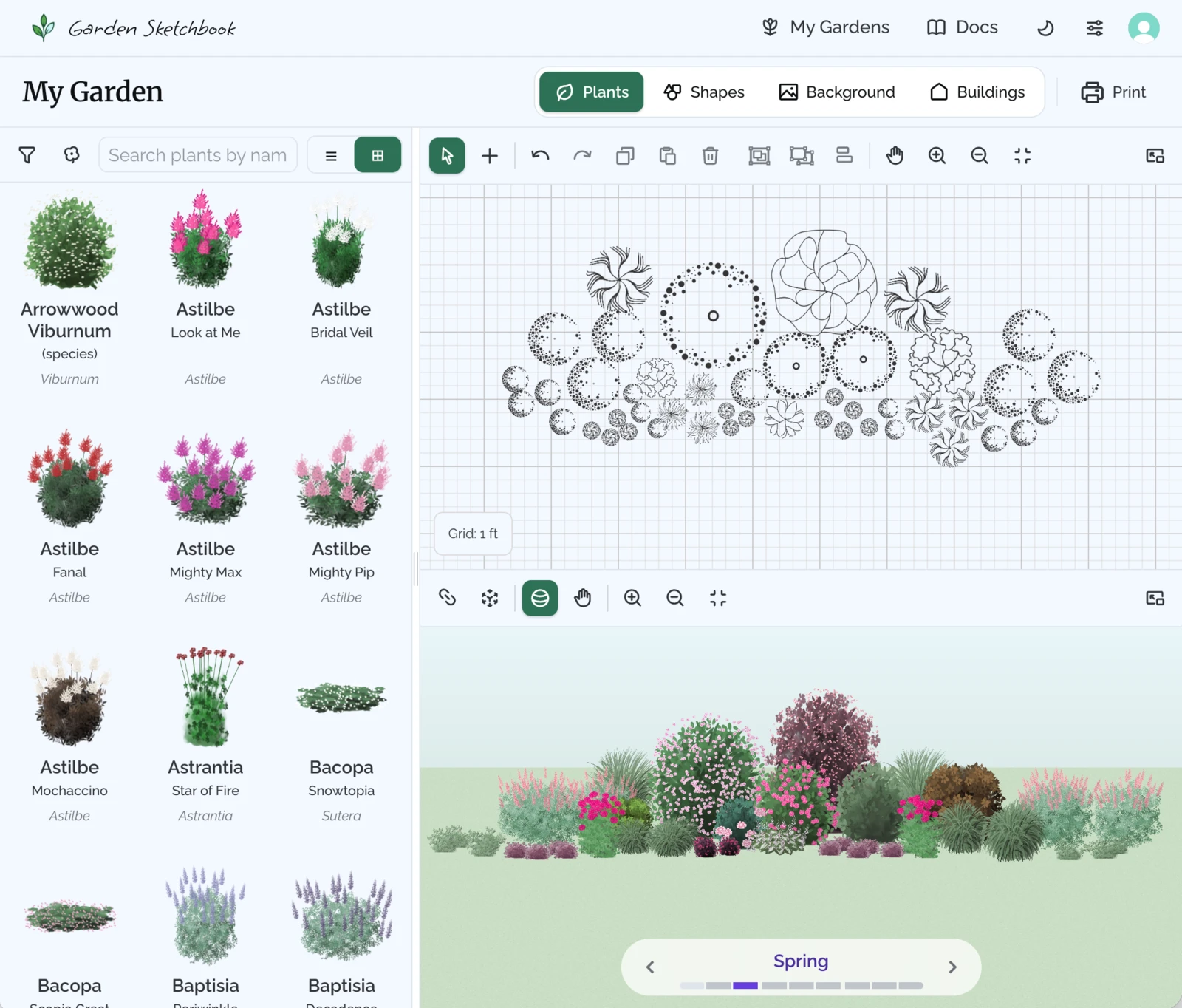
Design Your 2D Garden Plan to Scale and See It in 3D
Create your plan to scale. Choose from a library of over 500 plants (more coming soon). See their real mature sizes to understand if they’ll work in your space. Plants appear automatically in the 3D scene - all the art is hand drawn, by the way.
Step Through the Seasons
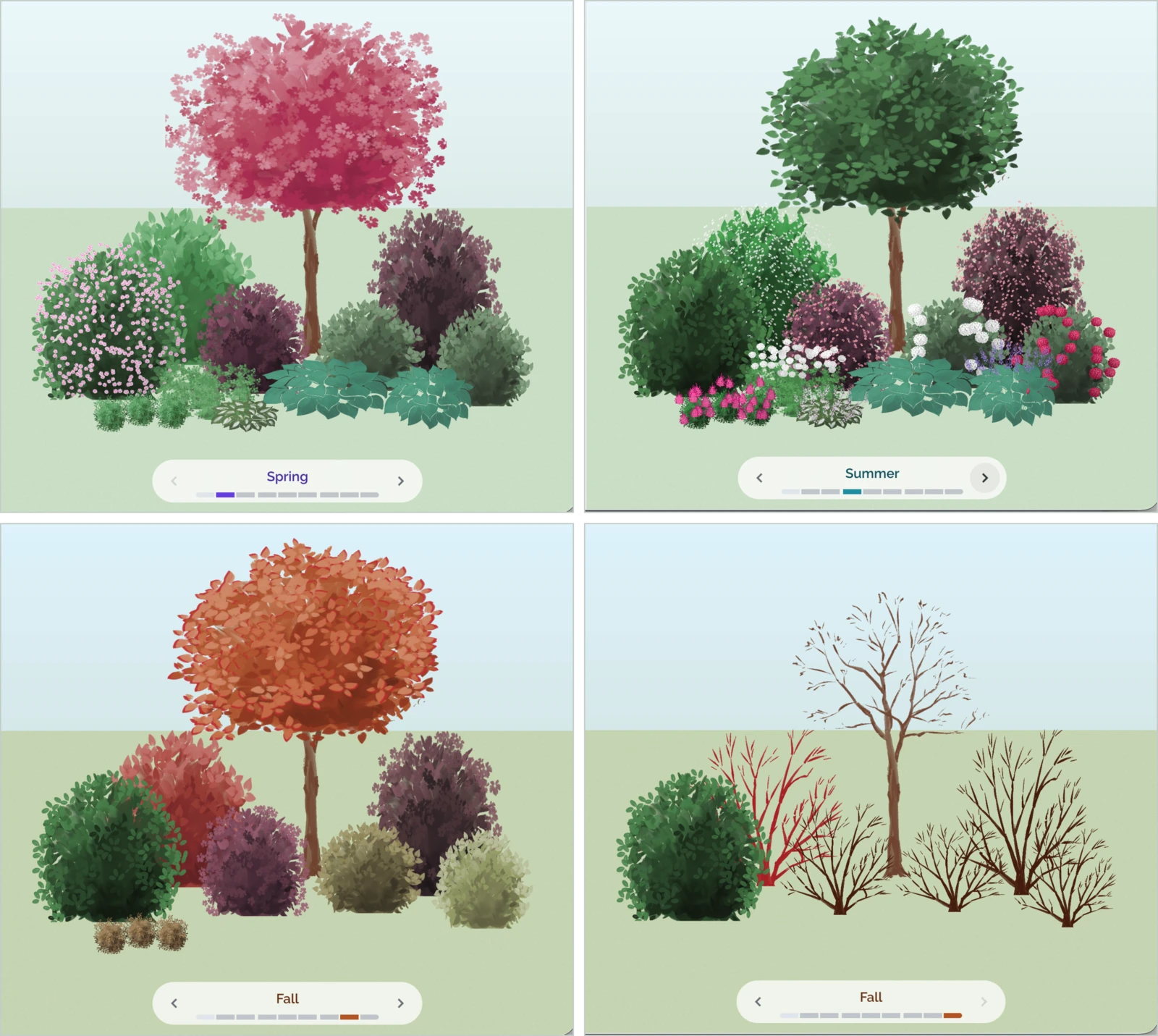
When you’re flipping through the garden catalog and seeing photos of every plant in full bloom, it can be hard to visualize what will actually bloom together. This was the main problem I had when I started; I wanted visual interest in every season, and I struggled to remember what would fade in and out at what time. In the 3D scene, step through the seasons to see what blooms in each season. It’s kind of magical.
Trace Your Real Yard
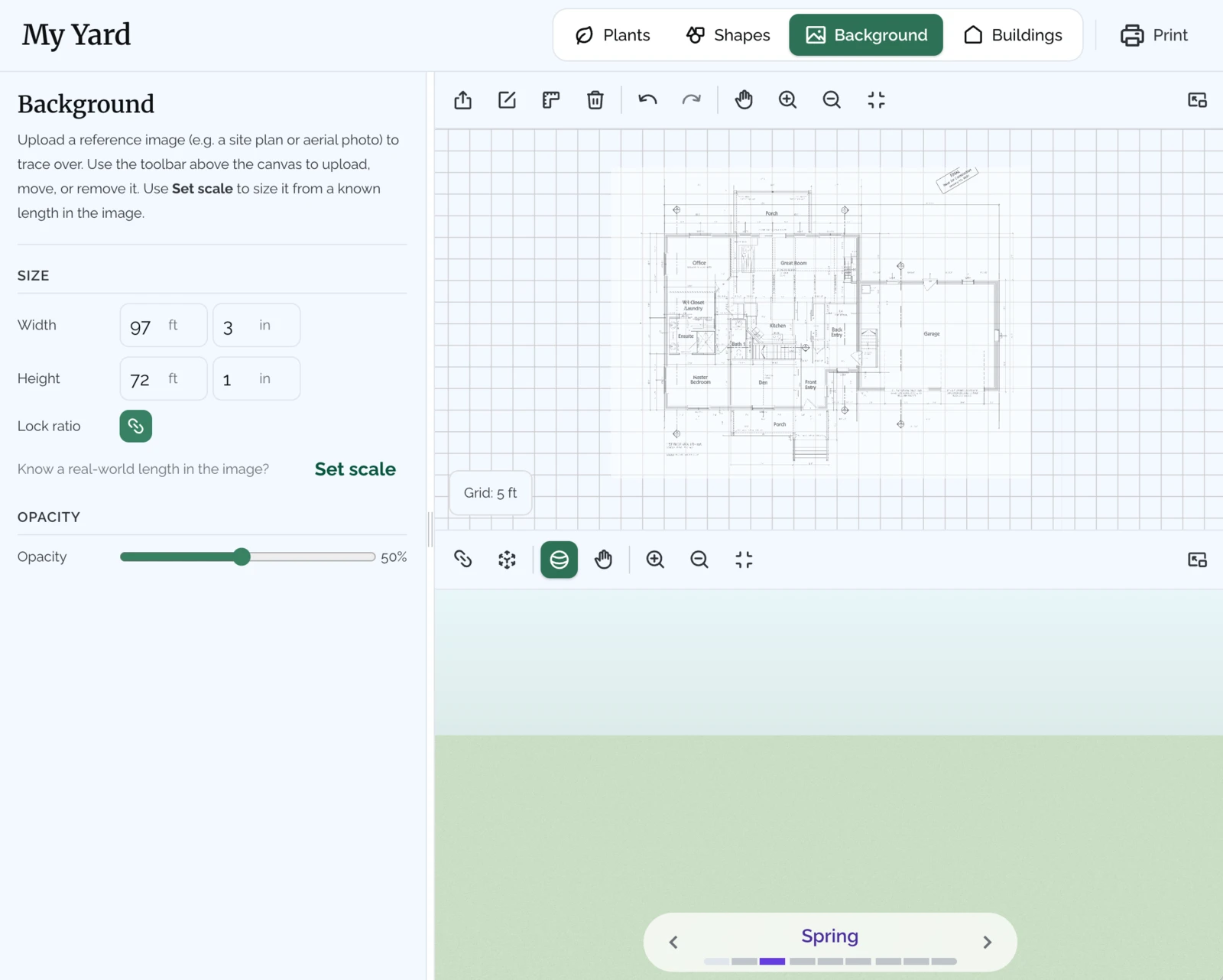
Accurate measurements make or break a garden plan. To help you know what will really fit, try tracing an aerial photo of your property. You can grab a screenshot from a map app, or if you have a house blueprint that’s helpful too. Garden Sketchbook has a Background tool to help you upload and scale your image, then you can design right on top of it.
Draw Garden Beds & Paths
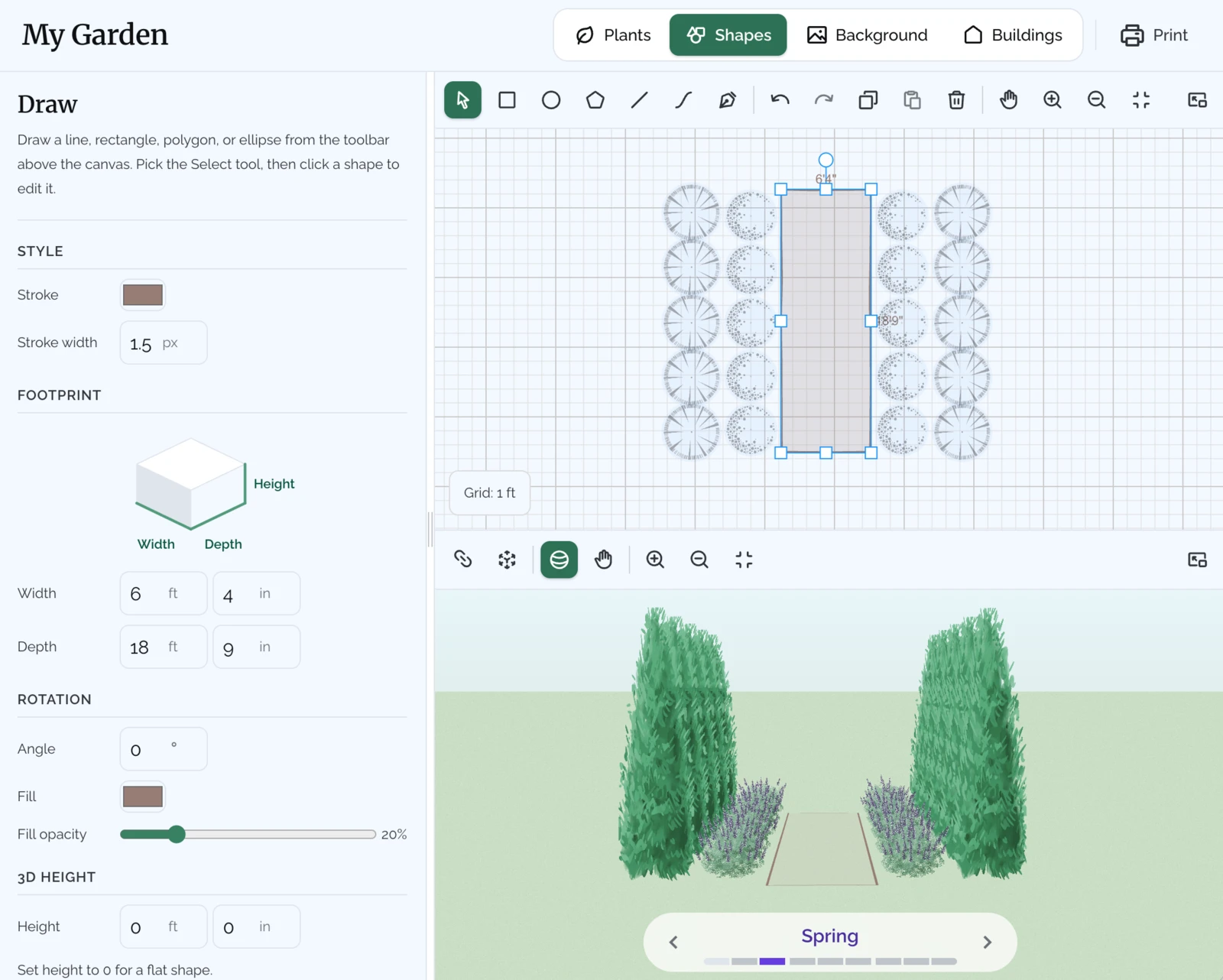
Draw shapes to represent anything you need in your garden: beds, paths, walls, rain barrels, and more. Draw any shape you need using built-in drawing tools; leave it flat for a bed or path, or give it a height to create a 3D object.
Build Your House in 3D
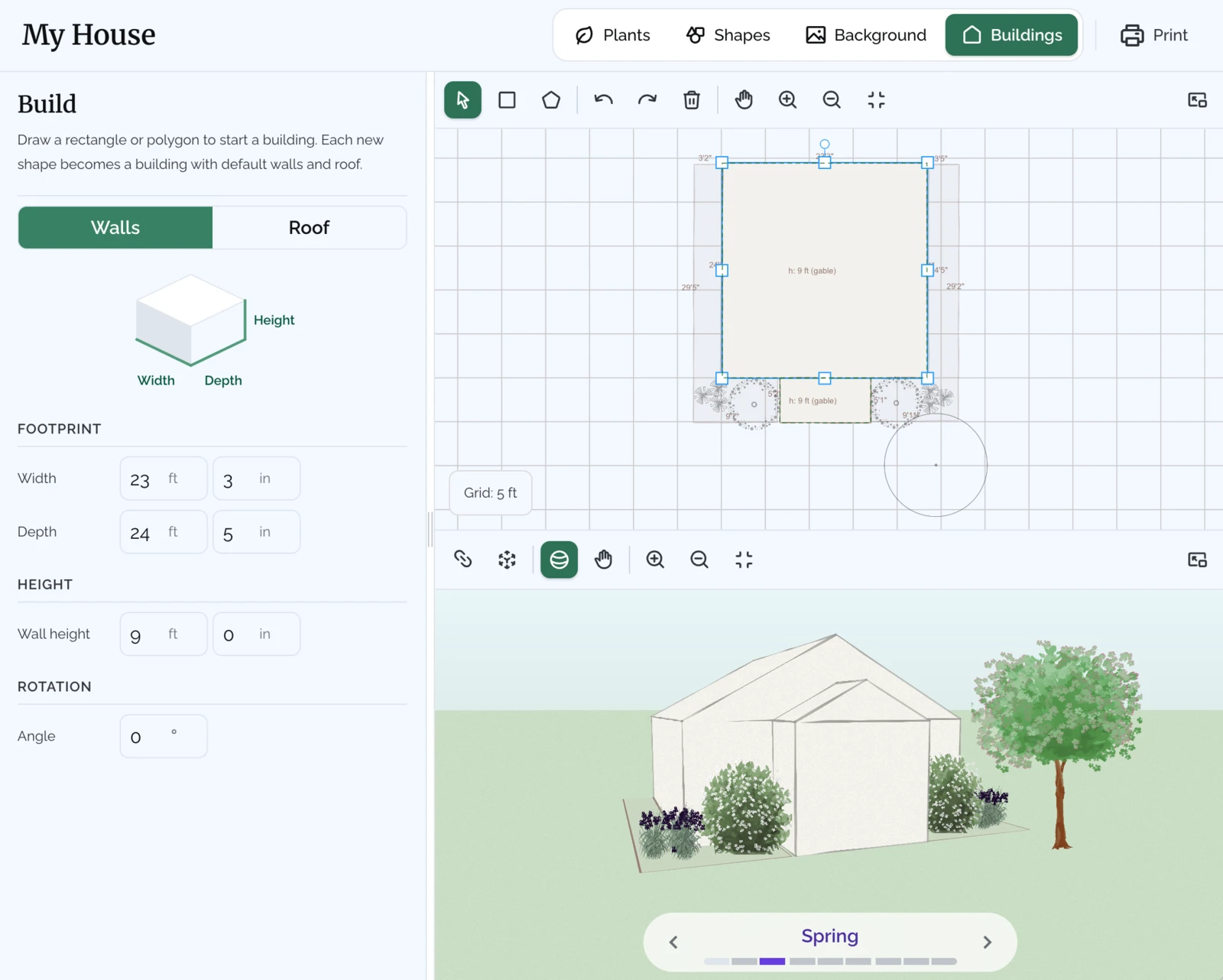
Easily create a simple 3D representation of your house. A blueprint or aerial photo is helpful for this if you have it. Trace the footprint, and a roof is added automatically. Choose from different roof types; for complex buildings, there are advanced controls to edit each roof segment individually. Build sheds and garages, too.
Find Plants for Your Specific Conditions
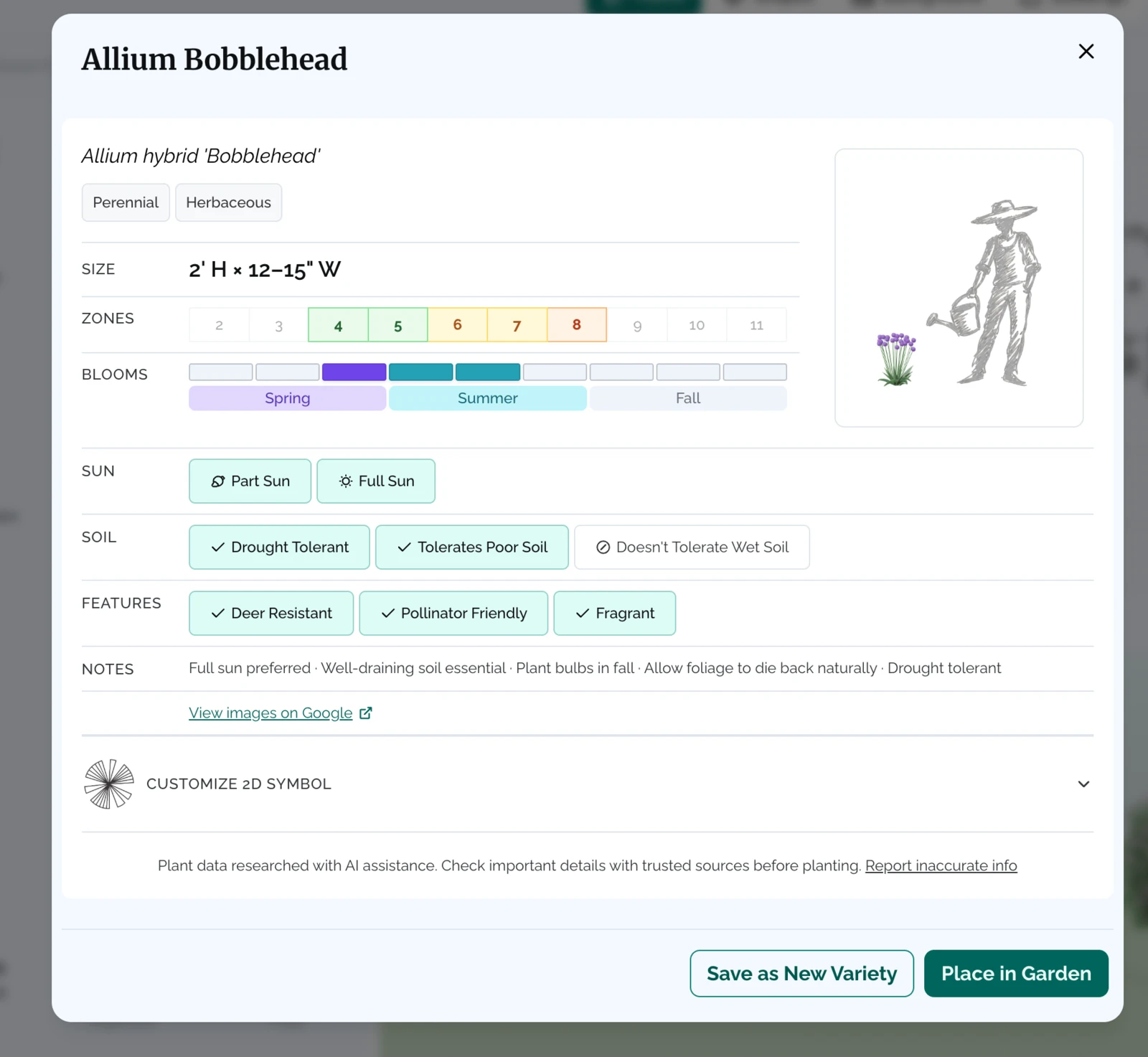
Filter the plant library by growing needs: sun exposure, soil needs, bloom time, and more. You can search for plants specifically for challenging spots, like dry shade. Or find late spring bloomers to fill a gap. Search for special features like pollinator friendly, deer resistant, fragrant, and native species too.
Create Custom Plants
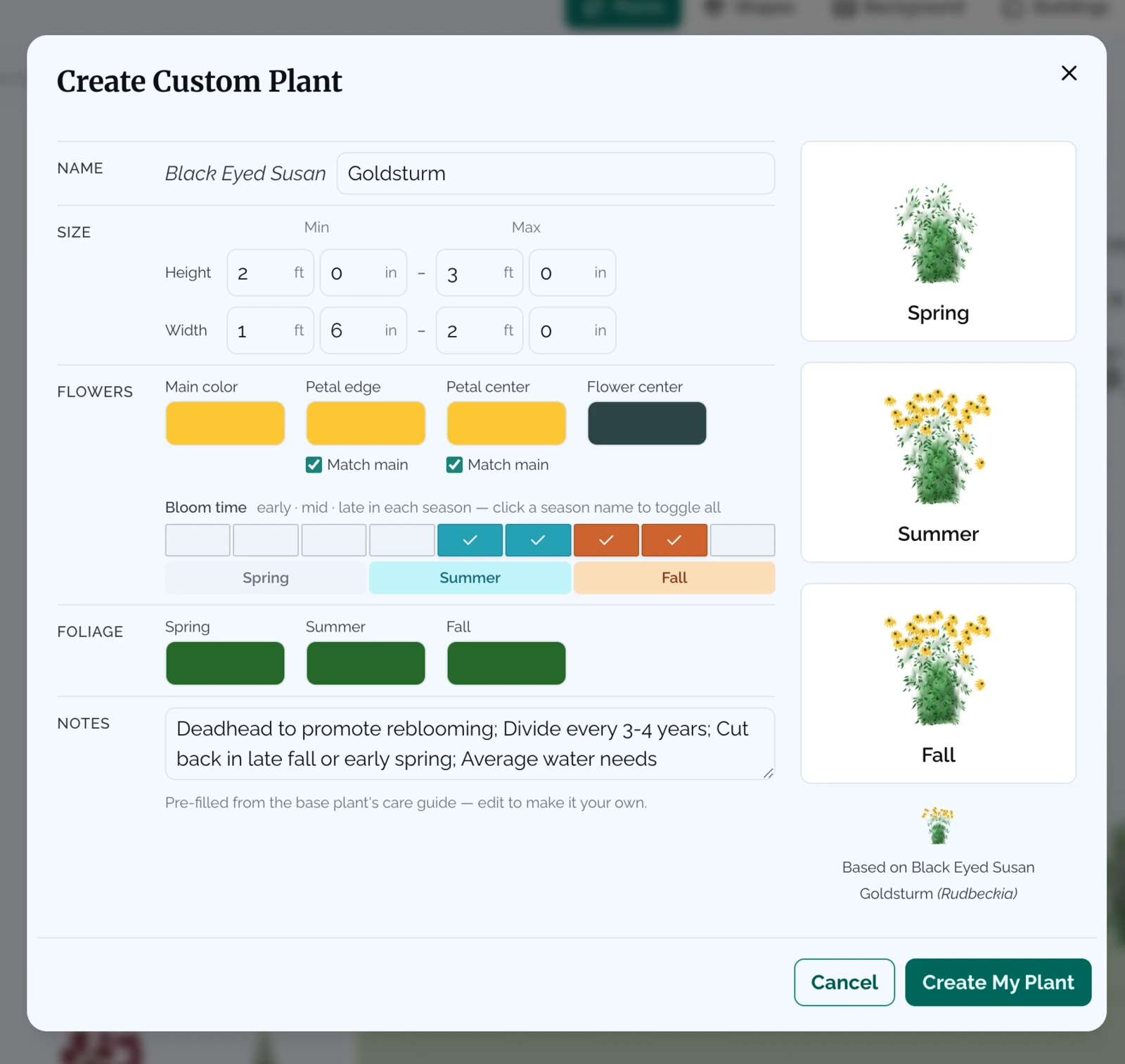
This was the #1 user requested feature. The library has a curated collection of hundreds of popular garden plants, but let’s face it, there are a lot of plants out there. In case the library doesn’t have your specific cultivar, you can create a custom plant. Choose a similar plant to use as a starting point, then edit the name, size, bloom color & season, and foliage color. Use your custom plants in your plan just like regular plants.
Design on Your Phone or Tablet
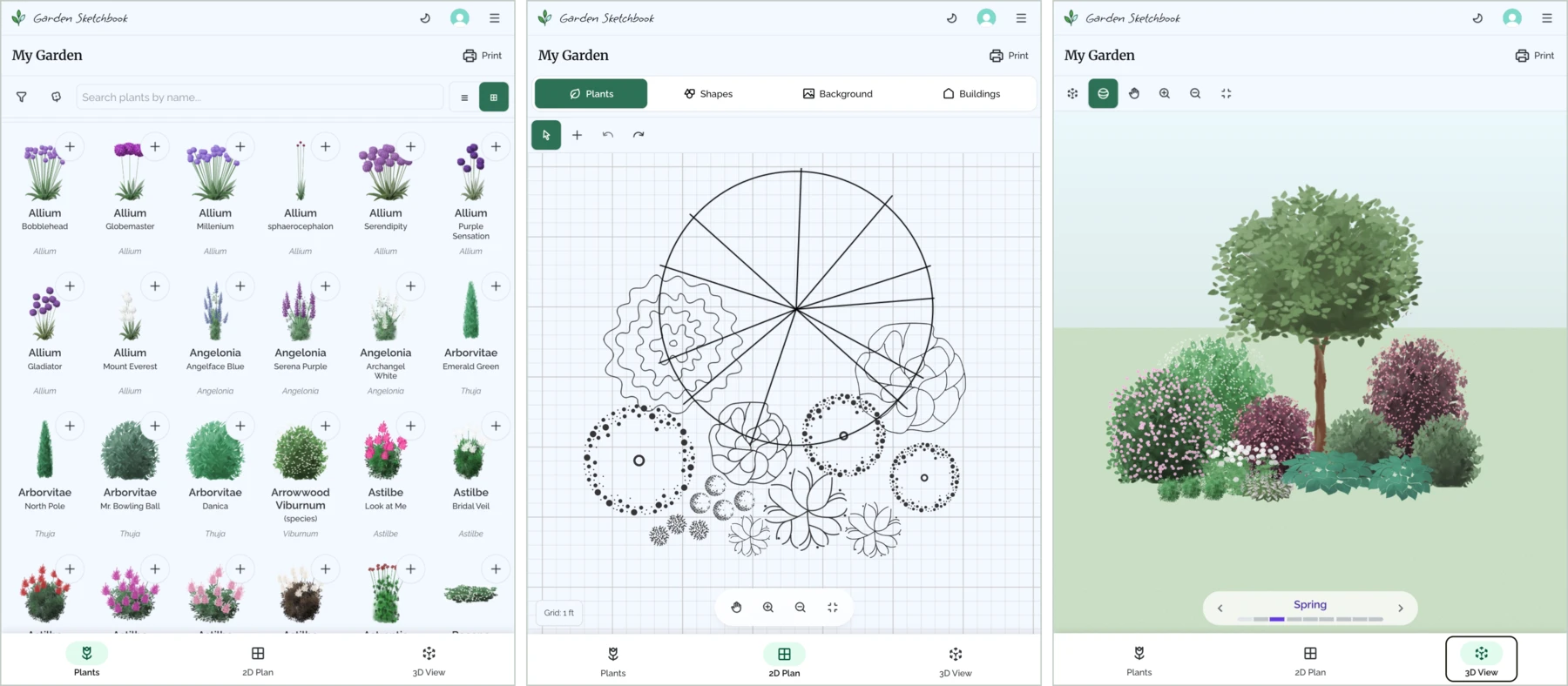
Garden Sketchbook runs entirely in the browser, no installation needed. On a phone, the editor becomes three full-screen tabs (plant library, 2D plan, and 3D view). If you’re signed in, your gardens sync across devices, so you can sketch ideas from the couch (or the yard) and refine them later at your desk. (Note that buildings are desktop-only for now; editing a complex roof is really easier on a big screen. But there’s a handy share link to pass a garden from phone to computer and back.)
Print Your Plan
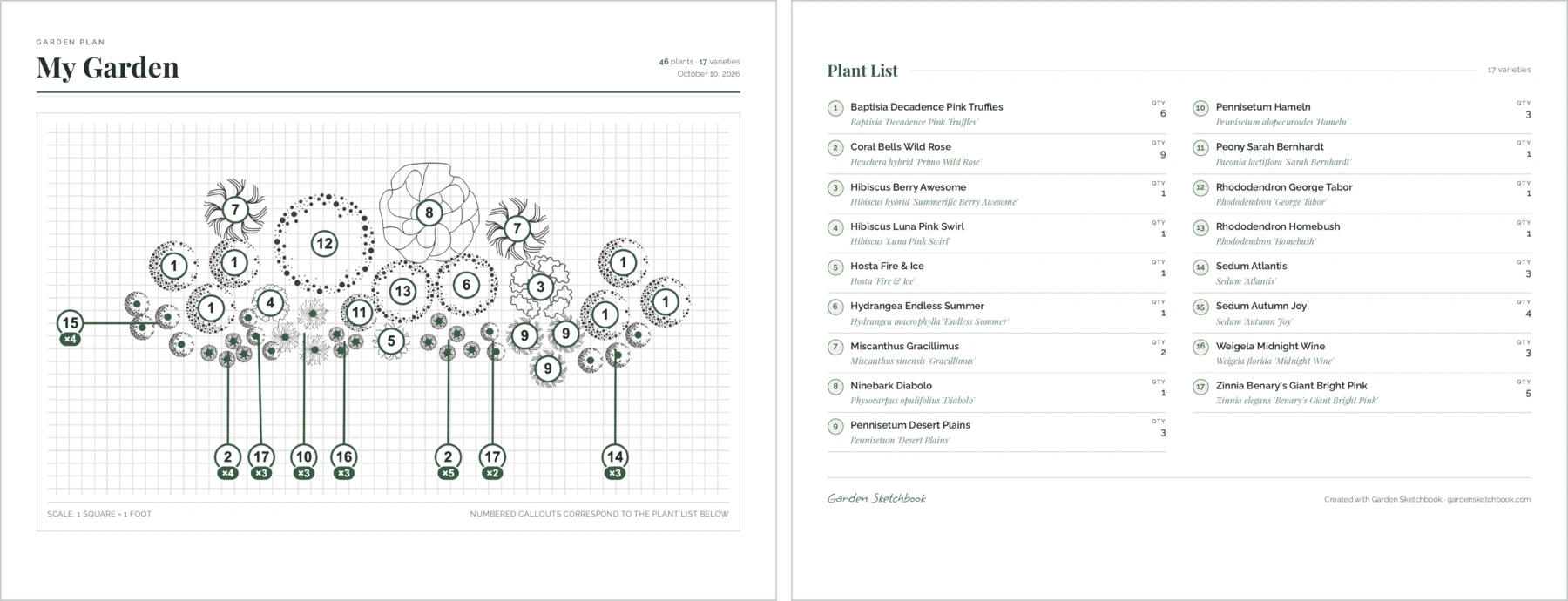
When you’re ready to plant, print a convenient plan showing the layout and plant list with required quantities. Handy to have when you head to the nursery.
What’s Next
More plants! I have a huge backlog of plants to add to the library, with a special focus on shade plants, which are currently a little underrepresented. If you can’t find your favorites, drop me a note and let me know which plants you want to see.
How-tos & tips. I’m in the middle of recording a tutorial series covering all the basic tools. Chapter 1 is live and covers all the 2D design tools, see it here. I’ll make some longer walkthroughs showing the garden design process start to finish, too.
Fall is a great time to plan, with the current year still fresh in your mind. If you’re curious, hop over to the app and try out the interactive demo.